
Give your Tesla a new look
Describe a wrap and let AI make it, or pick one from the community. Edit in your browser, see it live in 3D, and export it straight to your car.
Free to edit and export · 10 credits when you sign in · No charge if a generation fails
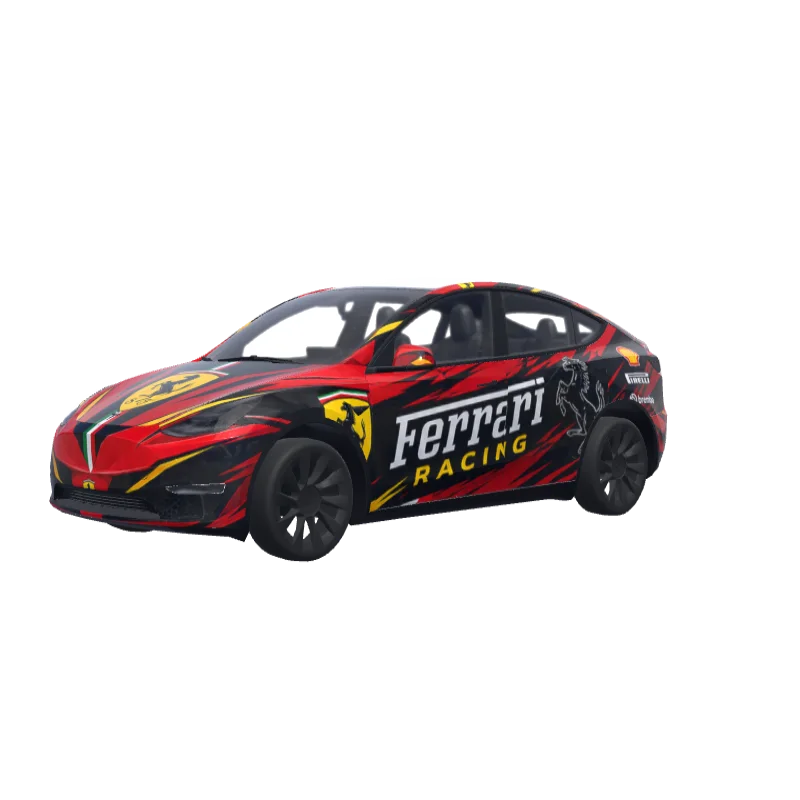
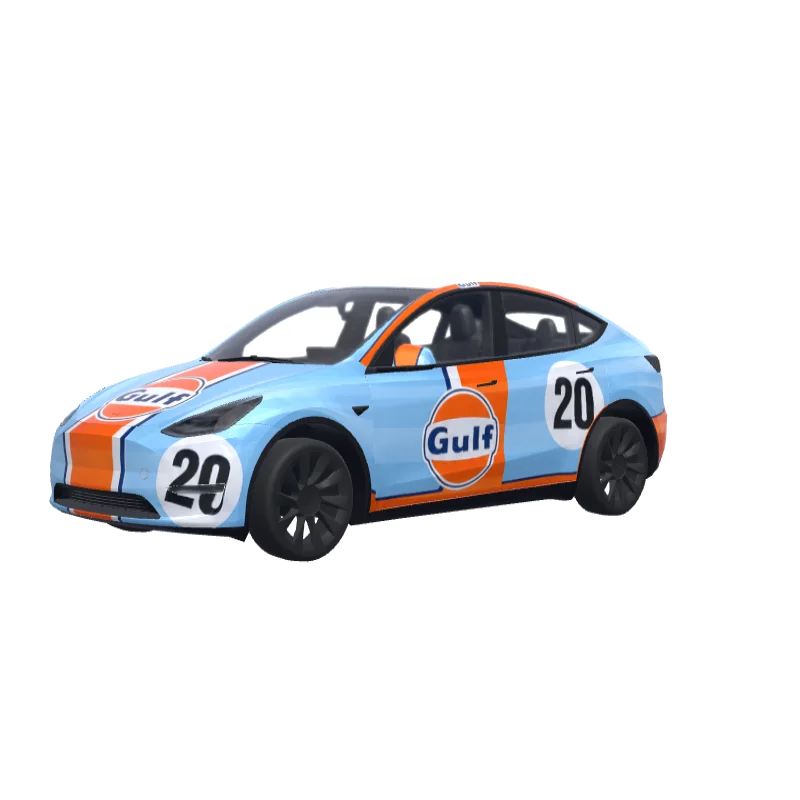
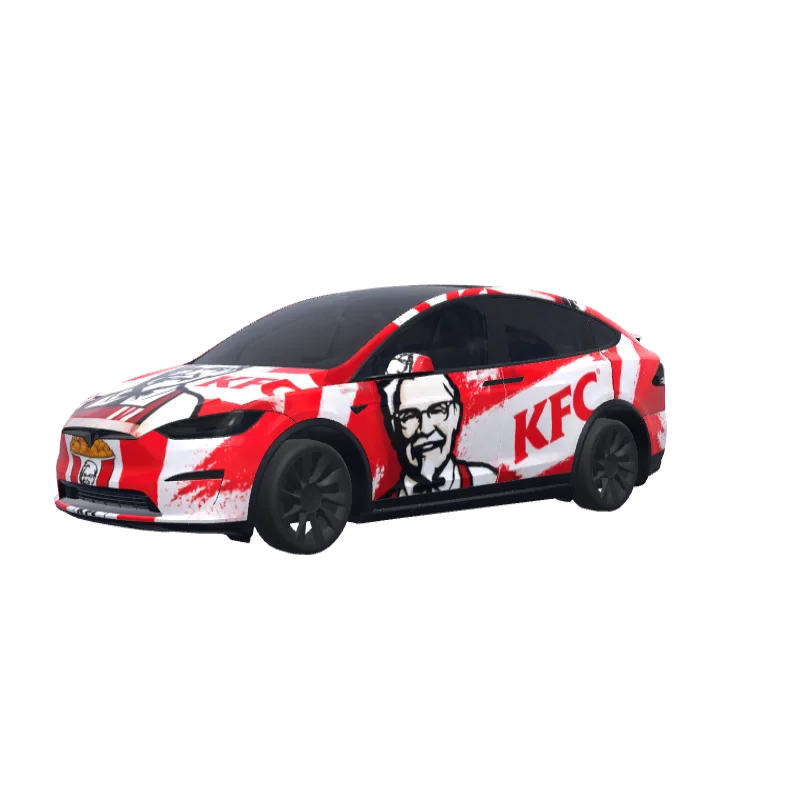
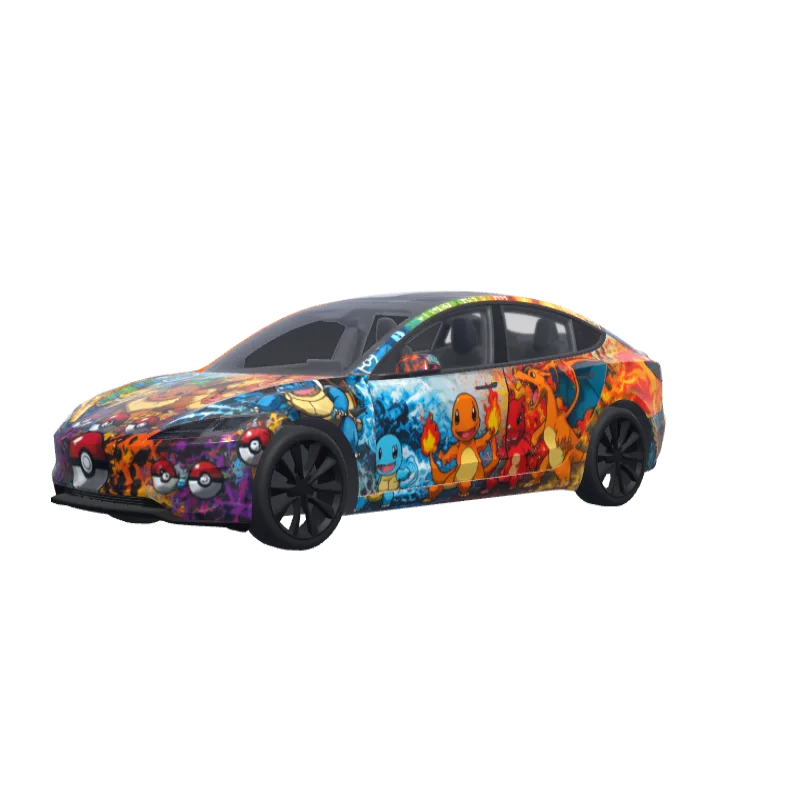
Find a wrap for your car
Choose your model and version to see only the wraps that fit it. Open one for details and a free download, or make it yours in the editor.
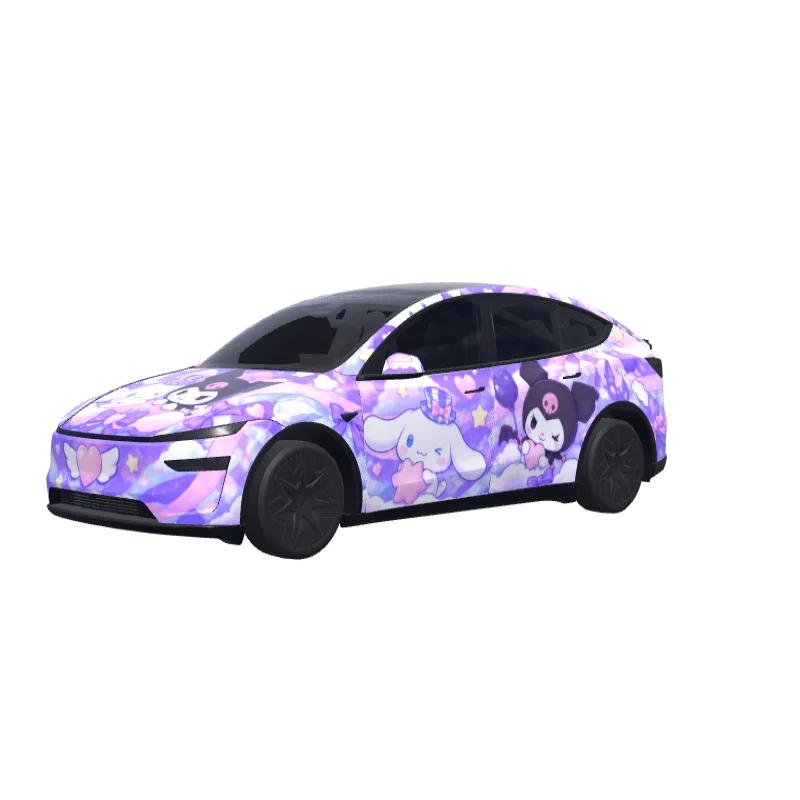
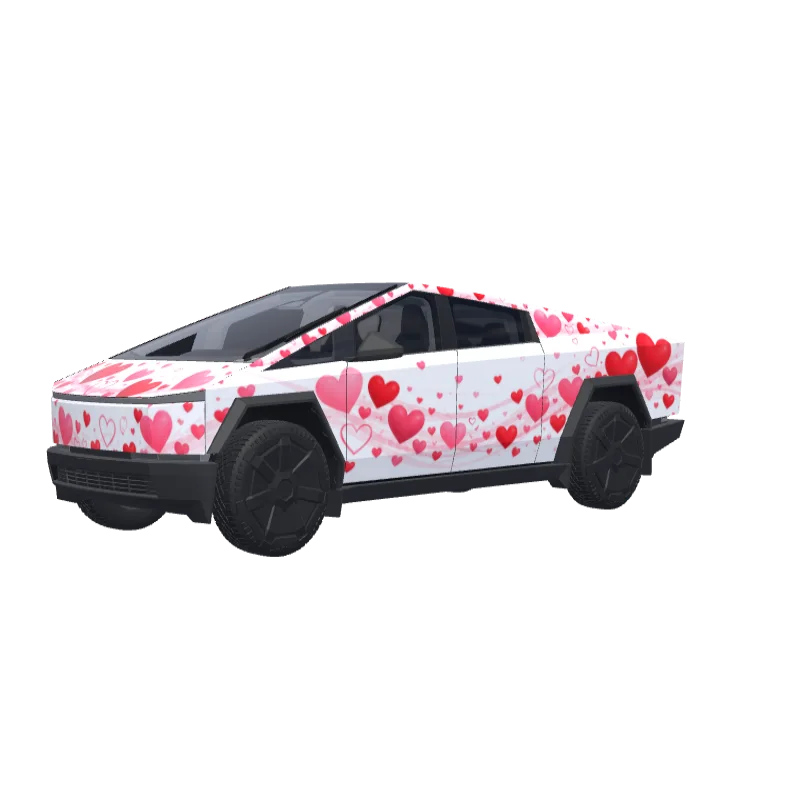
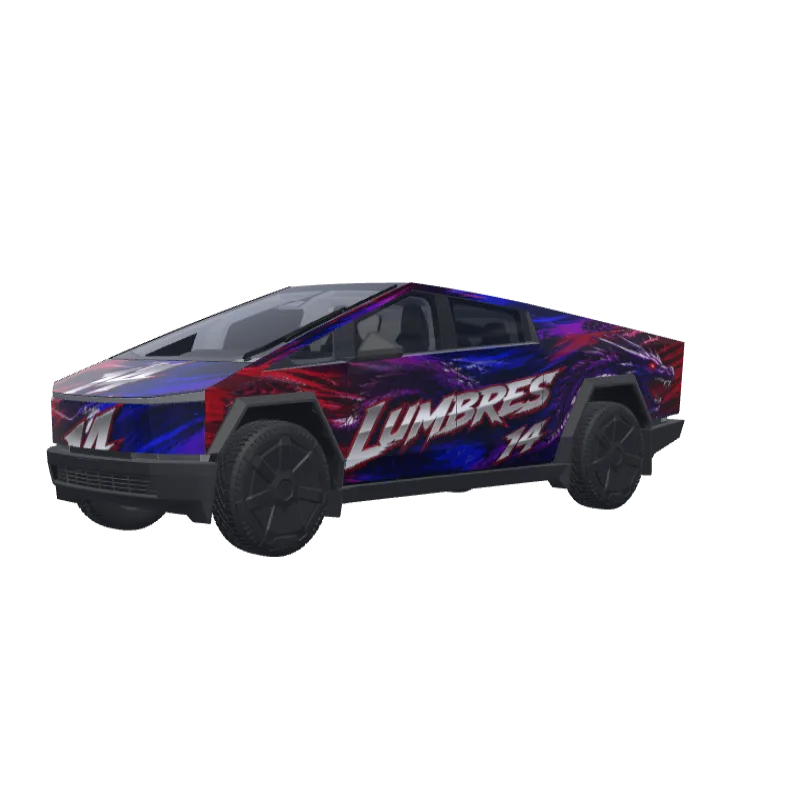
Three ways to make your own wrap
No drawing skills needed. Start whichever way suits you — you can keep refining the result in the editor.
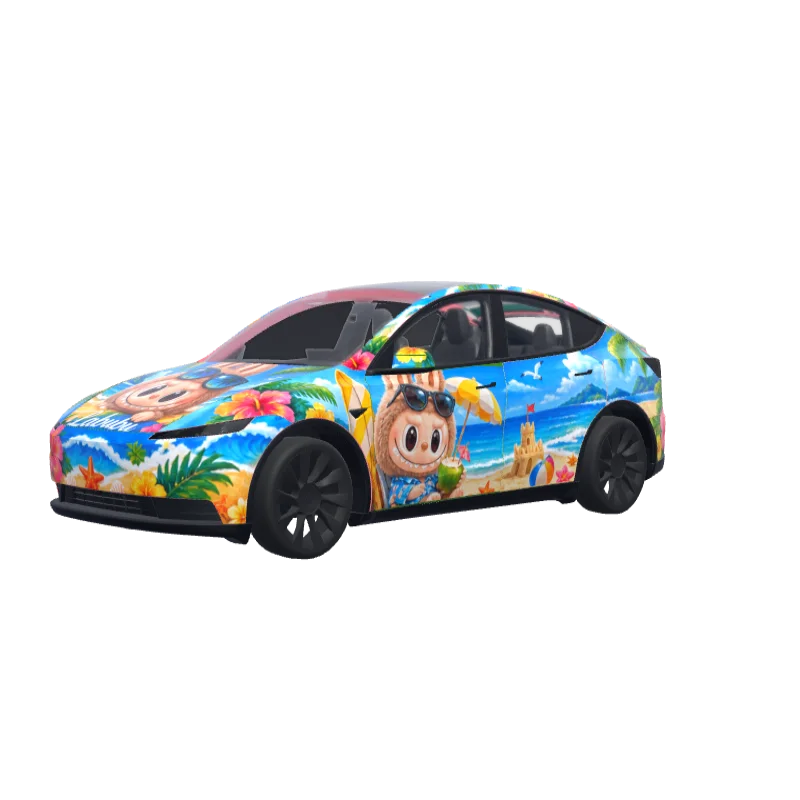
labubu on beach
Describe it
10 creditsWrite the colors, style and patterns you want. AI generates a full wrap on your model’s template.
Your photo
Photo to wrap
20 creditsUpload an image you love — a landscape, a poster, a texture — and AI turns its colors and style into a wrap.
Upload a photo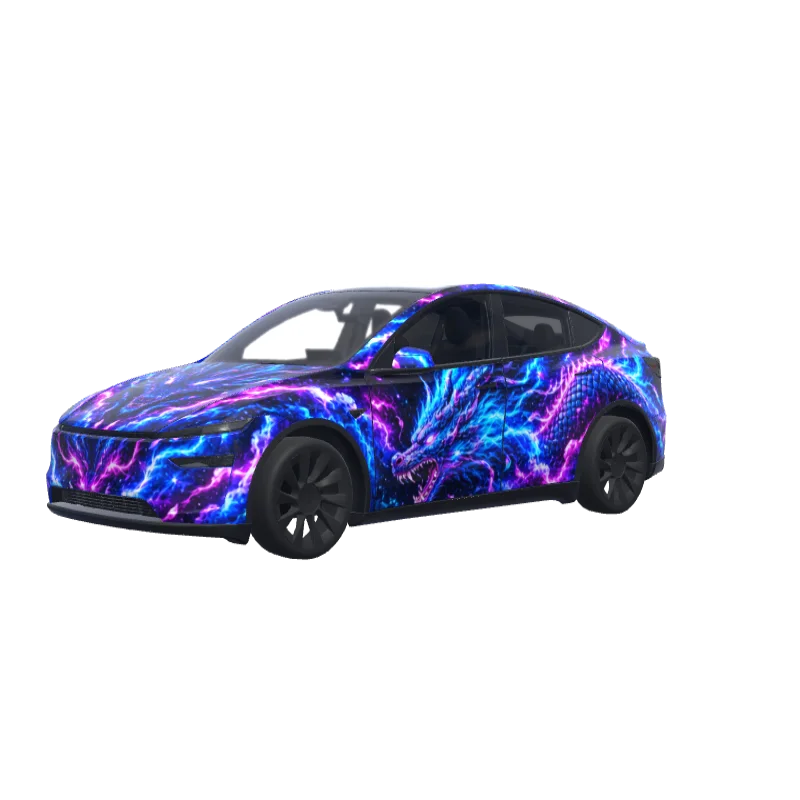
- Number 07
- Racing stripe
- Door graphic
- Body color
Blank canvas
FreeAdd text, shapes, images and brush strokes on the 2D template — design a wrap like you would a poster.
Open the editorChange it in 2D, see it in 3D
The editor shows your car’s template on the left and a live 3D view on the right. No guessing — what you see is what you get.
2D and 3D stay in sync
Every stroke on the template appears instantly in the matching spot on the 3D car.
Repaint only what you select
Not happy with one panel? Select it and let AI redraw just that part, leaving the rest untouched.
Export, then drive
Cropped to the official template and compressed to Paint Shop’s limits automatically. The PNG needs no extra work.
Works on computer, tablet and phone
Edit right in the browser with nothing to install. Your projects save automatically.
Model Y LSaved
Wrap template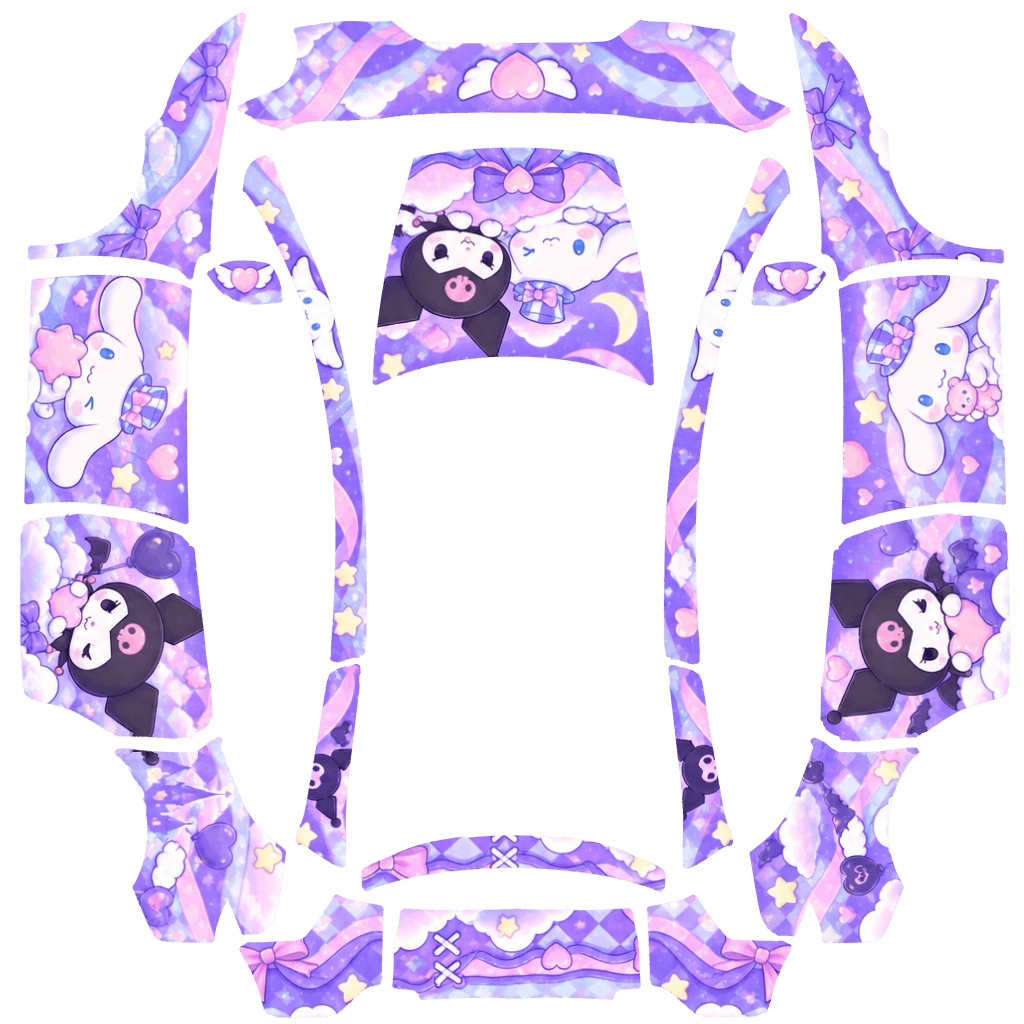
Live 3D
Put it on your car in three steps
Exported PNGs already meet Tesla Paint Shop’s requirements. Send them to the car from your phone or a USB drive.
- 1
Export the PNG to your phone
Tap “Export PNG” in the editor or on a design page. The file is saved to your phone or computer.
- 2
Upload it in the Tesla App
Open the Tesla App (v4.59.0 or later), go to Creations → Wrap → Upload and choose the PNG.
- 3
Apply it in the car
The car syncs automatically. Pick your wrap in Toybox → Paint Shop on the touchscreen.
Your car and its software must support Paint Shop. If you can’t find it, update both the car and the Tesla App first.
Handled for you on export
- Format · PNG
- File size · Compressed below 1 MB
- Resolution · 512–1024 px, per model template
- Fit · Cropped to your model’s official UV template
Wrap not showing up?
- Check that your model and car software support Paint Shop and are up to date.
- On USB, make sure the folder is named Wraps and sits at the root.
- Use the PNG exactly as exported here — don’t resize or recompress it in other apps.
Add a license plate background
Paint Shop supports custom plate backgrounds too. Pick a ready-made one or let AI make one to match your wrap.


Free to design. Pay only for AI.
Editing, 3D preview and export are free forever. Credits are only used for AI generations — no subscription.
- Edit, preview and export: always free
- 10 free credits when you sign in
- No credits charged if a generation fails
- Credits never expire, no subscription
Frequently asked questions
The questions we hear most about Paint Shop, pricing and installation.
What is a Tesla Paint Shop wrap?
Paint Shop is a Tesla personalization feature that puts a custom wrap on the 3D car shown on the touchscreen. Upload a PNG made on your model’s template and the car applies it to the body.
Does it change my car’s real paint?
No. A digital wrap only changes how the car looks on the touchscreen and in the Tesla App. Your real car is untouched.
Which models are supported?
Model 3, Model Y, Model S, Model X and Cybertruck across several years and versions, each with its official UV template. Whether Paint Shop is available depends on your car and its software version.
Is it free? How does AI pricing work?
Editing, 3D preview and export are free. AI uses credits per run: 10 for a text prompt, 20 with a reference image and 10 for a panel repaint. New users get 10 credits when they sign in, and failed generations are not charged.
How do I put the wrap on my car?
In the Tesla App (v4.59.0 or later), go to Creations → Wrap → Upload and choose the PNG. Or copy the PNG into a Wraps folder at the root of a USB drive and pick it in Toybox → Paint Shop.
Is WrapLoom an official Tesla tool?
No. WrapLoom is an independent third-party tool and is not affiliated with Tesla, Inc.
Is my data safe?
Editing happens in your browser. When you use AI, your description and reference image are sent to the AI service to create the wrap. For accounts that have never bought credits, generated wraps are shared to the community gallery by default; after buying credits you can turn sharing off before generating.
Your next wrap starts with one sentence
Describe the look you want, pick your car, and let AI and the editor do the rest.